

| Highlights: |
|
OpenAI introduced ChatGPT Work on July 9, 2026, as part of a broader update to the ChatGPT experience. It's available through the new ChatGPT desktop app for macOS and Windows, but availability may depend on your plan, company settings, and rollout status.
Regular ChatGPT conversations are often centered on an immediate request: summarize this document, explain a concept, rewrite an email, or help brainstorm an idea. ChatGPT Work is designed for assignments that require more follow-through. It can gather information, develop a plan, work across connected tools and files, create materials, and continue refining the result while the user reviews its progress.
OpenAI describes Work as an agent inside ChatGPT rather than a separate product. It's powered by the new GPT-5.6 model family and can create documents, spreadsheets, presentations, reports, and interactive Sites. It can also handle longer projects by dividing them into smaller steps and working through those steps over time.
For people who are new to AI tools, the most useful way to understand ChatGPT Work is this: Chat helps you think through something. Work helps you carry it through.
A Walkthrough of the ChatGPT Work Interface
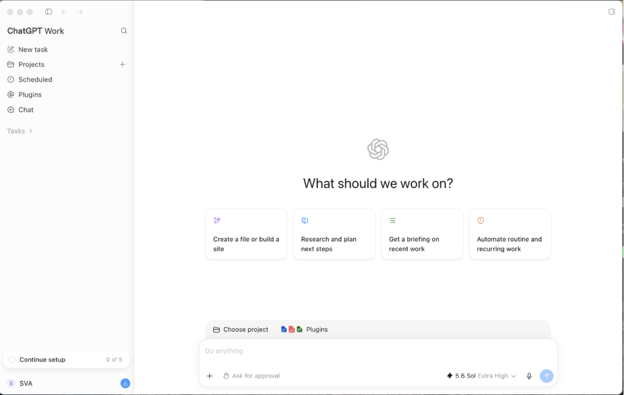
The screenshot above shows the home screen of the new ChatGPT Work desktop experience. Here's what each major part does.
New Task
New Task starts a Work assignment. A task can be something straightforward, such as creating a briefing from several documents, or something more involved, like reviewing customer feedback, identifying recurring issues, and building a presentation with recommendations. It helps to think of a task as a small project rather than a single question.
Projects
Projects give ChatGPT a defined place to keep related information. An existing ChatGPT Project can contain reference files, previous conversations, instructions, and other context connected to an ongoing subject. When you begin a Work task inside a Project, Work can use that Project’s context instead of starting from an empty conversation.
Scheduled
The Scheduled section is where recurring and future Work tasks can be managed. Scheduled Tasks can run once, repeat at a particular time, respond to an event, or monitor something for changes. A task could review new updates each Friday, prepare a meeting agenda every Monday morning, or check for changes to a dashboard and create a summary when something important happens.
Plugins
The Plugins section connects ChatGPT to other tools and gives it reusable capabilities. OpenAI has replaced its previous App Directory with a Plugin Directory. A plugin can include an app connection, reusable instructions called skills, templates, or a combination of these elements.
Existing app connections are not supposed to be affected by the change. Plugins may connect ChatGPT to tools such as Google Drive or SharePoint, Gmail or Outlook, Calendars, or project trackers apps.
Chat
The Chat option returns you to the more familiar conversational ChatGPT experience. Use Chat when you want to ask a question, rewrite a paragraph, explore an idea, search for information, or get help without starting a larger agent task.
The New GPT-5.6 Models Explained
ChatGPT Work launched alongside OpenAI’s GPT-5.6 model family. The family includes three main models: Sol, Terra, and Luna.
GPT-5.6 Sol
Sol is the most capable model in the family. It's designed for complex assignments that require deeper reasoning, like research, analysis, coding, financial modeling, and creating detailed deliverables from multiple sources.
In regular ChatGPT, Sol powers the Medium, High, and Extra High reasoning options. Sol Pro is available for especially demanding or longer-running tasks.
GPT-5.6 Terra
Terra balances capability, speed, and cost. It's suited for everyday professional work like drafting reports, reviewing documents, creating summaries, and supporting repeatable team processes.
GPT-5.6 Luna
Luna is the fastest and lowest-cost option. It's intended for high-volume, standardized work such as sorting information, extracting fields, formatting reports, and producing first-pass summaries.
What Happened to the Regular ChatGPT Model?
GPT-5.5 Instant remains the default for quick, everyday requests. For more complex prompts, ChatGPT may automatically switch to GPT-5.6 Sol on eligible plans. Users can also choose a reasoning level manually.
| Setting | Best for |
| Instant | Quick, everyday requests |
| Medium | Standard reasoning |
| High | More detailed analysis |
| Extra High | Complex assignments |
| Pro | Difficult or longer-running work |
Good First Tasks to Try
A first assignment should be useful but easy to verify.
Turn Source Material Into a Finished Document
Upload or select a small group of approved files and ask Work to create a structured summary, briefing, or report.
Example: Review these three project updates and create a two-page status report. Include completed work, current risks, unresolved decisions, owners, and next steps. Use plain language and do not add information that is not present in the files.
Prepare for a Meeting
Connect an approved calendar and document source (such as Outlook and SharePoint), then ask Work to assemble a meeting briefing.
Example: Prepare a briefing for tomorrow’s customer meeting. Use the calendar invitation, the latest account plan, and the approved meeting notes. Include the meeting purpose, recent activity, open questions, possible concerns, and five questions to ask.
Build a Repeatable Weekly Update
After testing a task manually, turn it into a Scheduled Task.
Example: Every Friday, review the approved project updates from the past seven days and draft a weekly summary. Include decisions, risks, owners, deadlines, and items that need leadership attention. Ask me to review the draft before it is shared.
Getting Started with ChatGPT Work
ChatGPT Work gives users a new way to move from asking questions to completing more involved assignments. The best place to start is with a focused task, a small set of approved sources, and clear instructions about the desired outcome.
As you become more familiar with the workspace, Projects, Plugins, and Scheduled Tasks can help turn successful one-time assignments into repeatable workflows.
