

| Highlights: |
|
AI tools are increasingly being built directly into the software people already use every day. One of the most practical examples of this is the ability to connect AI assistants like Claude or ChatGPT to Microsoft Excel.
With these tools, users can interact with spreadsheet data using plain language. Instead of manually writing formulas, filtering rows, or building pivot tables, users can simply ask questions about their data and receive insights directly within the spreadsheet.
For teams that rely heavily on Excel, this can make data analysis faster and more accessible.
Common Use Cases
Here are several practical ways teams can use Claude and ChatGPT inside Excel.
Financial Modeling and Analysis
Finance teams often work with complex multi-tab spreadsheets. Claude can explain how formulas flow through a model, identify key assumptions, and summarize the drivers behind changes in revenue, costs, or margins.
For example, a user could ask AI to review a financial model and explain the assumptions driving a revenue forecast or highlight which variables have the biggest impact on profitability.

Data Analysis and Trend Identification
Claude can quickly analyze large datasets and identify patterns or anomalies.
Users can ask questions like:
- What are the top trends in this dataset?
- Which regions had the largest revenue decline?
- Identify outliers in this sales data
Instead of manually filtering or building pivot tables, AI can produce summaries and insights automatically.
Debugging Spreadsheet Errors
Spreadsheets often contain broken formulas, circular references, or unexpected results. AI tools can help explain why a calculation is producing a certain output and help identify where an error may be occurring. This can save time when working with complex or unfamiliar spreadsheets.
How to Activate and Use Claude or ChatGPT in Excel
AI assistants like Claude or ChatGPT can be added to Excel through add-ins that allow you to ask questions about your spreadsheet using plain language.
1. Open Microsoft Excel
- Open the spreadsheet you want to work with.
2. Open the Add-ins marketplace
- In the top menu, click Insert → Add-ins → Get Add-ins.
3. Search for an AI assistant
- In the marketplace search bar, type Claude or ChatGPT.
4. Install the add-in
- Select the add-in and click Add or Install.
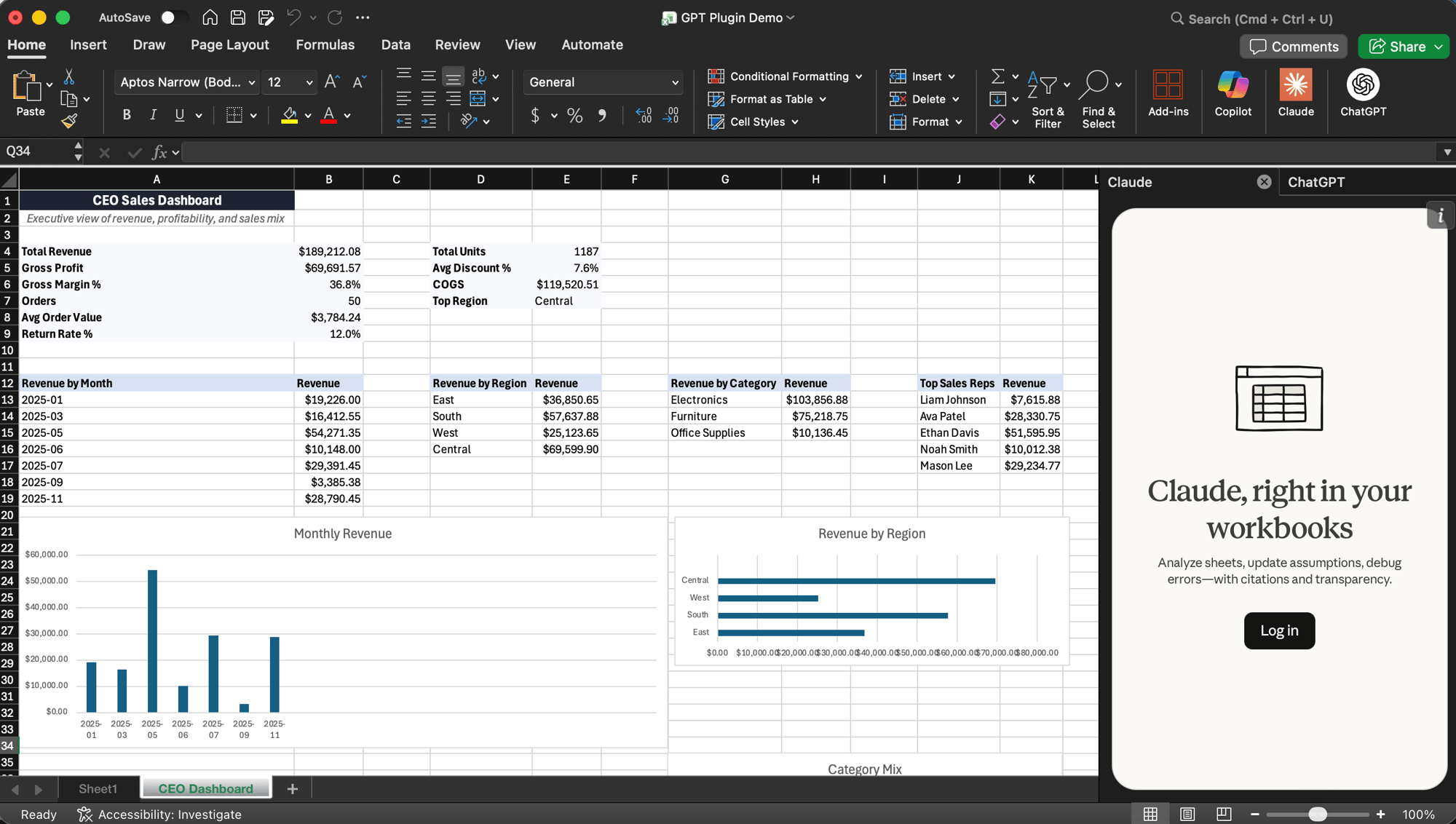
5. Sign in to your account
- You may be prompted to sign in to your Claude (Anthropic) or ChatGPT (OpenAI) account.
6. Open the AI sidebar
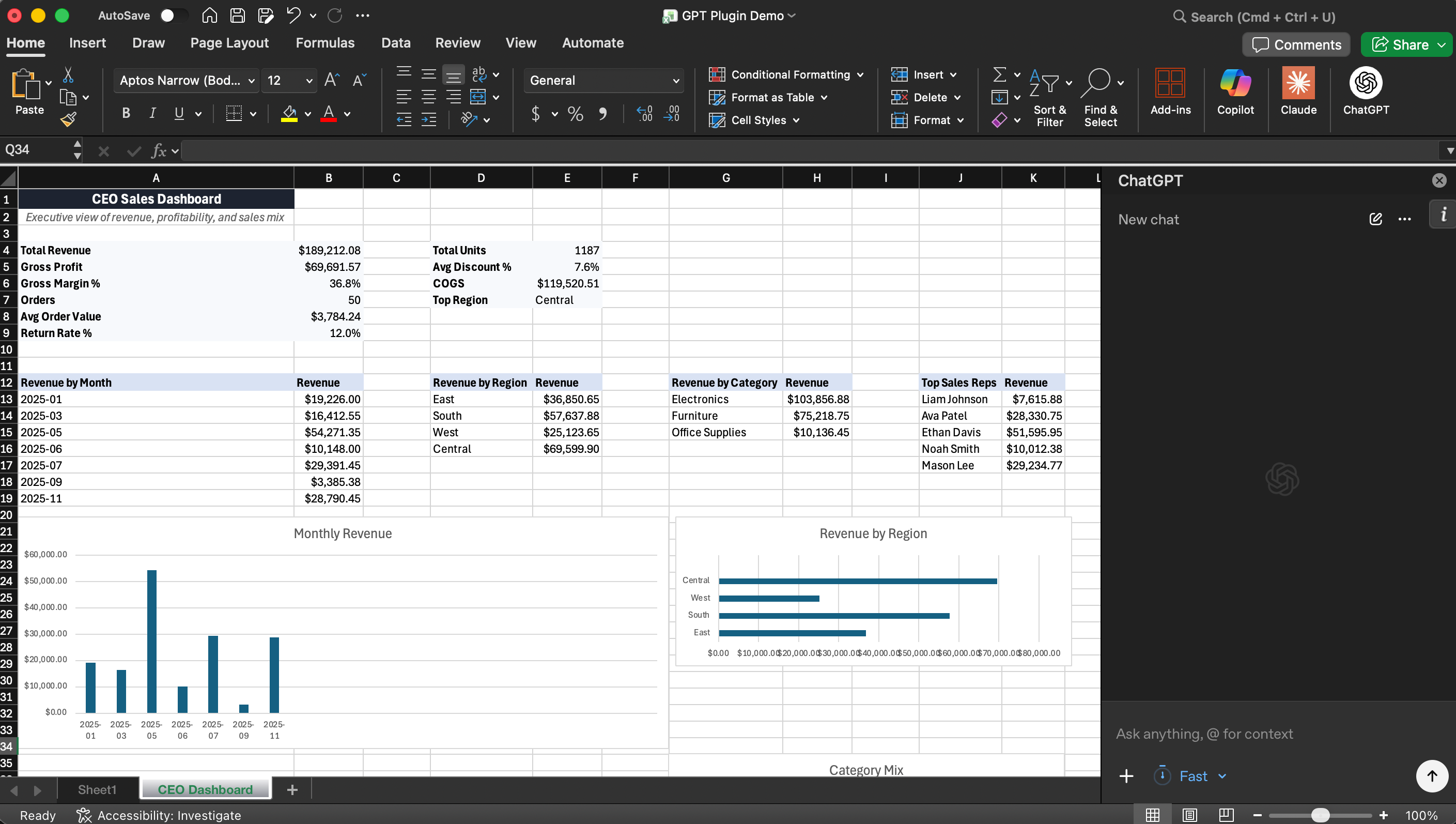
- Once installed, a sidebar will appear inside Excel where you can begin interacting with the AI.
7. Start asking questions about your spreadsheet. You an ask things like:
- Summarize the key trends in this spreadsheet.
- Which region had the largest sales decline?
- Explain what this formula does.
- Identify any unusual values in this dataset.
The AI assistant will review the spreadsheet and return insights directly in the sidebar.

© 2026 SVA Consulting