

| Highlights: |
|
A lot of people try Copilot the same way they try a search engine. They open the chat box, type a question, get an answer that feels a little general, and move on. After a few tries, it’s easy to think, “This is fine, but I don’t really see the big deal.”
That reaction is understandable. Copilot isn’t always helpful when the request is broad. A vague prompt usually leads to a vague answer.
Copilot becomes more useful when you give it a specific job and point it to the right information. That could be a document, spreadsheet, meeting recap, email thread, or a set of files your team already uses.
This doesn’t mean Copilot should be trusted without review. It also doesn’t mean every feature is available to every person. Access depends on your Microsoft 365 license, your organization’s settings, and what IT has enabled.
Still, for teams that have Copilot and aren’t seeing much value from it, the issue may not be the tool itself, but how narrowly it’s being used.
Below are ways to use Copilot beyond basic chat, with simple examples for each one.
Use Copilots Inside Word, Excel, and PowerPoint
Many people use Copilot as a separate chat box. In some Microsoft apps, it can also help inside the file you are already working on.
That matters because a lot of work isn’t about asking questions, it’s about cleaning up a document, organizing slides, checking a spreadsheet, or turning rough information into something easier to use.
| Word | |
| Copilot in Word can help summarize documents, rewrite sections, organize content, and pull out key details. |
|
| Example | You could open a long document and ask Copilot: |
| Prompt | “Find all deadlines in this document and put them into a table with the section name, deadline, and person responsible.” |
| This is useful when the information is already there, but it would take time to find and organize manually. | |
| Excel | |
| Copilot in Excel can help analyze data, identify patterns, explain numbers, and create simple summaries or forecasts. | |
| Example | You could ask: |
| Prompt | “Look at this sales sheet and tell me if any numbers look unusually high or low compared with the rest.” |
| This helps you quickly spot areas that may need a closer look. | |
| PowerPoint | |
| Copilot in PowerPoint can help shorten presentations, reorganize slides, improve structure, and adjust messaging for different audiences. | |
| Example | You could open a long presentation and ask: |
| Prompt | “Please reduce this deck to 12 slides. Keep the budget section, remove repeated points, and make the section titles consistent.” |
| This can help when a deck has grown over time and needs to be easier to present. | |
Get Help in Excel Without Knowing Every Formula
Excel is powerful, but not everyone feels comfortable writing formulas or building analysis from scratch.
Copilot can help people work with spreadsheets using plain language. It can edit worksheets, generate data and formulas, create charts and dashboards, and help you understand what your data is showing.
Here are a few practical ways it can help:
| Edits Worksheets | Copilot can add, rename, or delete worksheets, update cell values, and apply formatting like borders or conditional formatting. | Example: “Create a new sheet called ‘Q2 Summary’ and highlight any sales below target in red.” |
| Generate Data & Formulas | You can ask Copilot to create sample data, apply formulas across sheets, or summarize totals. | Example: “Add a formula to calculate total revenue for each row and give me a summary by region.” |
| Create Charts, PivotTables, and Shapes | Copilot can turn your data into visuals that stay connected to the source data. | Example: “Create a bar chart showing monthly sales and a PivotTable by product category.” |
| Build Dashboards or Templates | Instead of starting from a blank sheet, Copilot can help structure a workbook for you. | Example: “Create a simple project tracker with columns for task, owner, deadline, and status." |
| Identify Insights in Your Data | You can ask questions and Copilot can highlight trends, outliers, or patterns. | Example: “Are there any months where sales dropped significantly compared to the rest of the year?” |
| Use Web Search for Context | In some cases, Copilot can pull in outside information to support your analysis. | Example: “Compare our pricing to average market pricing for similar products.” |
| Import Data From Other Workbooks | Copilot can bring in data from other Excel files stored in OneDrive, SharePoint, or your computer. | Example: “Pull last quarter’s sales data from the finance workbook and combine it with this sheet.” |
Use Researcher for More Detailed Research
The regular Copilot chat can answer questions, but deeper research often needs more structure.
Researcher is designed for work that requires gathering information from multiple sources, checking context, and giving a more complete summary.
If you’re new to Copilot, you might be wondering where to find Researcher. In most cases, it appears as an option inside Copilot when you’re choosing how to run a task, or as a specific “agent” or mode depending on how your organization has set things up. If you don’t see it, it may not be enabled yet, so it can be worth asking your IT team.
A simple way to think about Researcher is this: instead of giving you a quick answer, it takes a bit more time to look across different sources and pull together a more complete response.
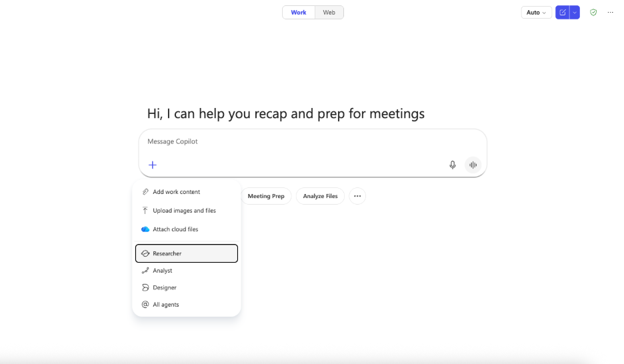
| Example: Prepare for a prospect meeting | Ask: “Research this company and summarize the main business issues they may care about. Keep it to one page and include sources.” | That can help a sales or leadership team walk into the meeting with a clearer starting point. |
| Example: Compare competitors | Ask: “Compare how these three competitors describe their services. Focus on pricing, target customers, and main messages.” | This can save time when someone needs a basic market view but doesn’t want to start from a blank page. |
Use Copilot to Organize Your Inbox
Email is one of the easiest places to lose time.
In Outlook, Copilot can help prioritize messages when the feature is available. To use this, you can open Copilot directly in Outlook and ask it to help organize your inbox based on what matters most to you.
For example, you might say, “Help me prioritize emails from key clients” or “Show me which emails need my attention today.” The value comes from giving Copilot clear guidance about what matters to you, rather than relying only on default sorting.
| Example: Prioritize client messages | You could tell Copilot: “Emails from our top clients, or emails that mention renewal, contract, budget, or delay, should be high priority.” | That helps important client issues stand out faster. |
| Example: Lower the volume of routine messages | You could tell Copilot: “Company newsletters, FYI threads, and automated notifications should be low priority unless they ask me to take action.” |
Use Facilitator and Copilot to Get More From Meetings
Facilitator is a feature in Teams that helps guide a meeting while it’s happening. It can capture notes, highlight key points, and keep track of decisions and action items as people talk.
Instead of relying on someone to take notes manually, Facilitator helps create a shared record of what was discussed. This can make meetings easier to follow, especially when there are multiple topics or a lot of back-and-forth.
After the meeting, you can use Copilot chat to ask questions about what happened. This works best when the meeting was recorded or transcribed.
You can also ask Copilot to create a custom summary based on what you need, instead of reading through the full recap.
| Example: Use Copilot chat to understand the meeting |
You could ask: “What were the main decisions and key points from this meeting?” This helps when you want a quick overview without going through the entire recording or transcript. |
| Example: Create a custom summary | You could ask: “Summarize this meeting for someone who wasn’t there. Focus on decisions, action items, and anything that needs follow-up.” |
Schedule Prompts You Ask Again and Again
Some Copilot questions are not one-time questions – they come up every day, every week, or every month.
Scheduled prompts can help with that when your organization has them enabled.
To set one up, you start by writing the prompt you want Copilot to run. Then you choose how often it should run and what time of day it should run. In many cases, you can also choose how you want to receive the result, such as an email summary or a notification inside the app.

It can help to keep the prompt clear and specific, since Copilot will run it automatically without you there to adjust it. You can also go back and edit or turn off scheduled prompts if they are no longer useful.
| Example: Prepare for the week | You could schedule: “Every Friday afternoon, summarize my meetings for next week and list anything I should review before Monday.” | That gives you a simple planning summary before the next week starts. |
| Example: Check important emails | You could schedule: “Every morning, summarize any new emails from our top accounts from the last 24 hours.” | This can be useful for people who need to stay close to key clients without constantly checking the inbox. |
Start With One Specific Task
Copilot is most useful when it’s treated less like a general search box and more like a work assistant that needs clear instructions. You don’t have to use every feature at once. Start with one task that already takes time, such as summarizing meetings, reviewing a spreadsheet, organizing emails, or cleaning up a document.
Give Copilot the right context, check the results, and adjust the prompt as needed. Over time, those small uses can turn Copilot from something interesting to try into something that helps reduce routine work.
